Posts
What are posts used for?
You can use posts for a variety of reasons. Some examples are:
- Notice of upcoming meetings or events`
- Updated guidelines
- Approval of a project
- Road closure or construction project notice
- Anything else that you deem newsworthy
Where do posts show up on my website?
Posts will appear on the "News / Notices" page as seen here on our template site.
There is also a News and Notices section on the homepage that displays the four most recent posts.
Post Fields
How do each of the post fields work?
Title
- Text field that is the name or "title" of the post.
Slug
- This helps create the unique link to the post's url. ex:
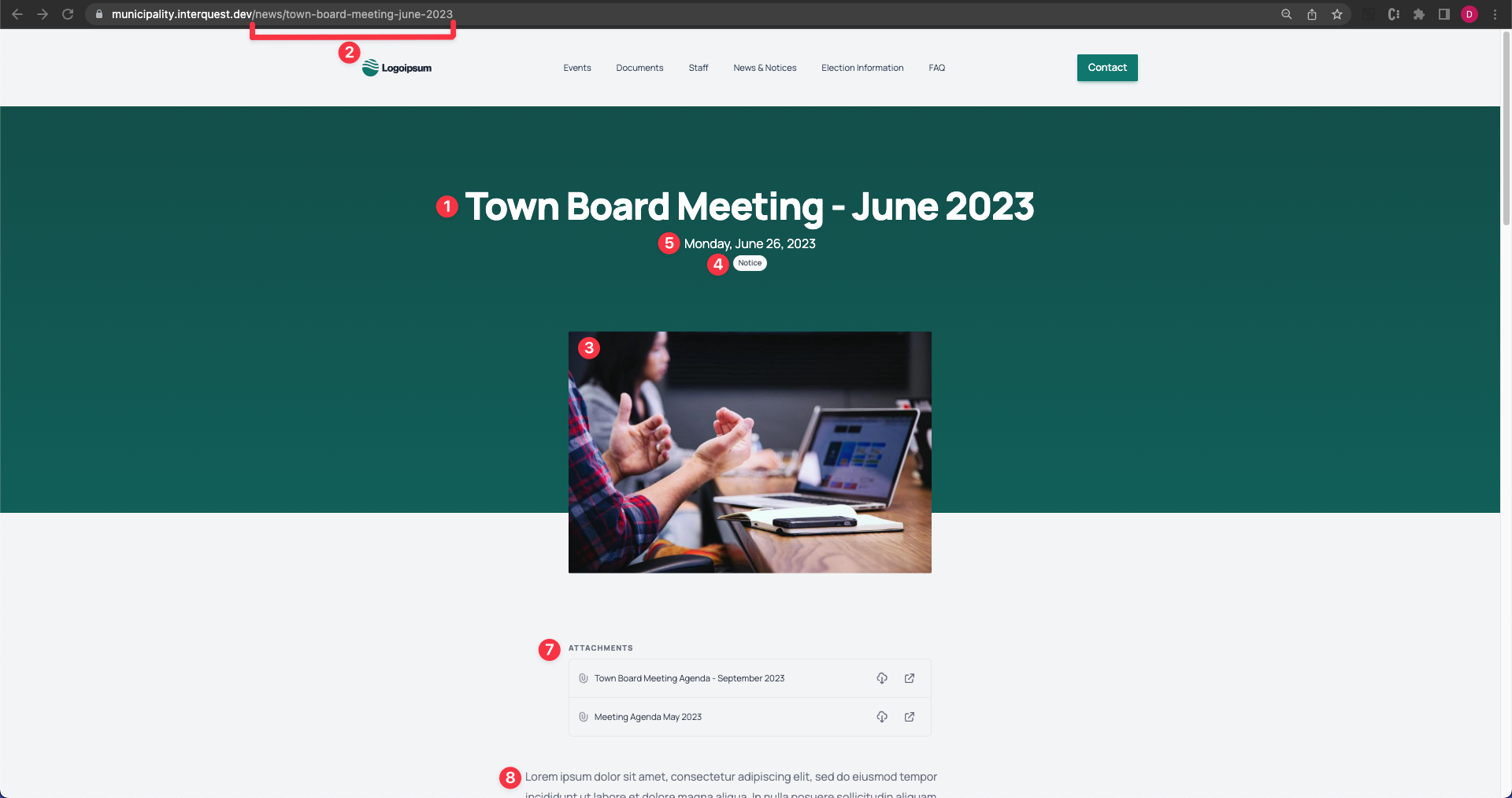
municipality.interquest.dev/news/public-test-for-voting-equipment-for-spring-election - You can click "Generate" to automatically generate a slug from the Title.
Slugs Must Be Unique!For posts that may be repeated often such as "Town Board Meeting" we advise including the date in the title.
(ex: Town Board Meeting - 9/3/23)
- This helps create the unique link to the post's url. ex:
Featured Image
- Image that is featured on each individual post's page. From the dropdown menu you can upload your own image, select from images that have already been uploaded to the site or use "Unsplash". Unsplash a copyright free image gallery to pick an image that works for your post.
Category
- Category of your post (ex: Notice, Elections, Misc, etc.). This keeps posts organized and easy for users to sort through with the checkbox filters on the news and notices page.
Creating new categoriesYou can create new categories, however be careful as having too many will begin to clutter the News & Notices page and make it difficult for users to find what they are looking for. We recommend only having 2-5 categories.
Publish Date
- The date and time the post will be published on your website. If it is in the future it will not display until that date.
Summary
- Also known as an "excerpt", this should be a brief summary of the post or alternatively the first couple sentences of the post.
Post Content
- Here is where the actual content of the post is created. This field allows the use of headings, lists, bold, italics, block quotes and the abilty to add images to create any type of post!
Documents
- Upload your documents(s) or choose from documents you have previously uploaded. Accepted file types are .pdf, .docx, .doc, .xls and .xlsx. Learn more about how to use Documents.
Where does each field display on my website?
For a live example of a post card visit an event on our template site here.
- Title
- Slug
- Featured Image
- Category
- Publish Date
- Summary
- Post Content
- Documents
The post summary is used on the post preview card on the news and notices page and in a section on the homepage.
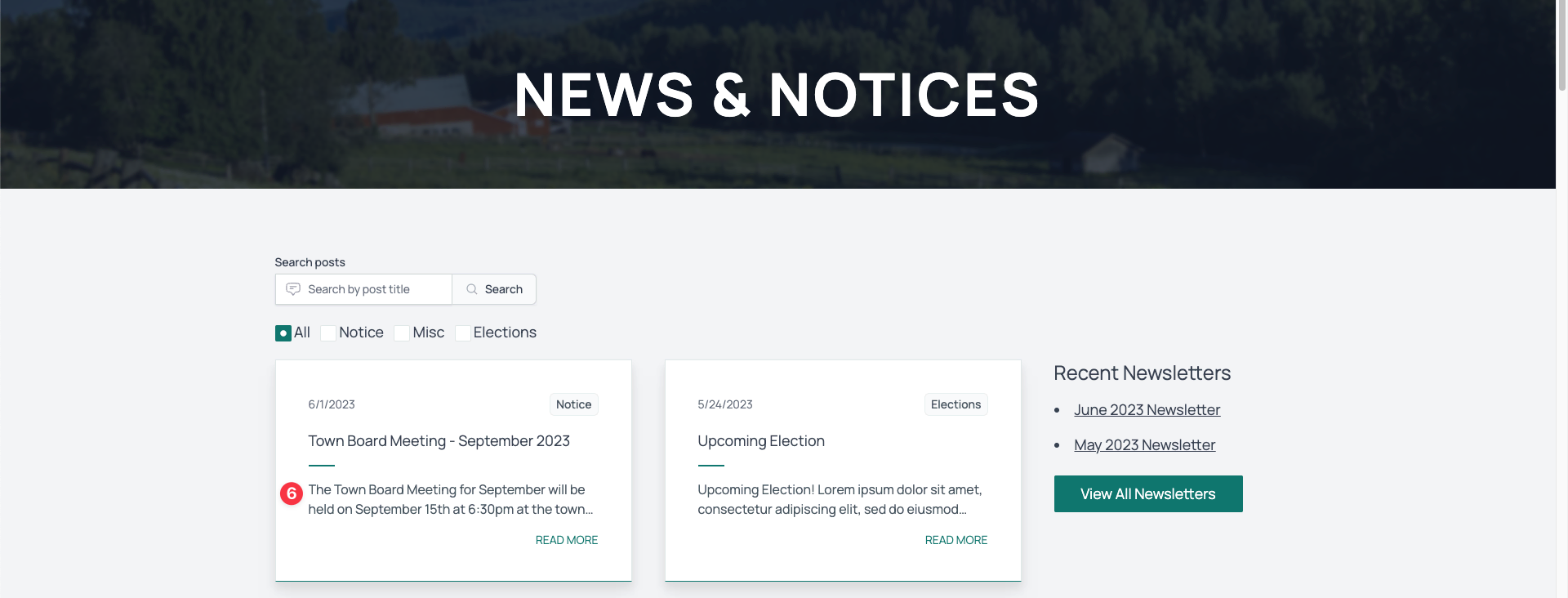
As seen here, the post summary is sometimes automatically shortened to 2 lines. The summary is used to give users a small preview of the post so they're more inclined to click "read more".
How do posts display when I link to them on social media?
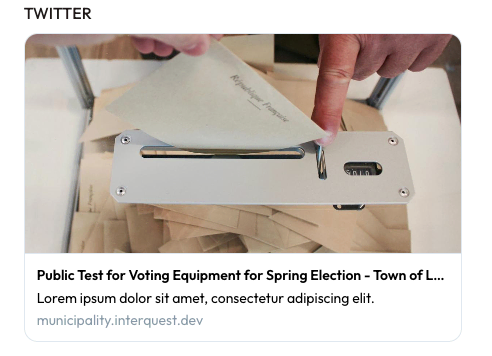
Here are examples of what they will look like on Facebook and Twitter: