Creating a Document
Creating a new document in our CMS is easy like the other items but has a few nuances we want to cover.
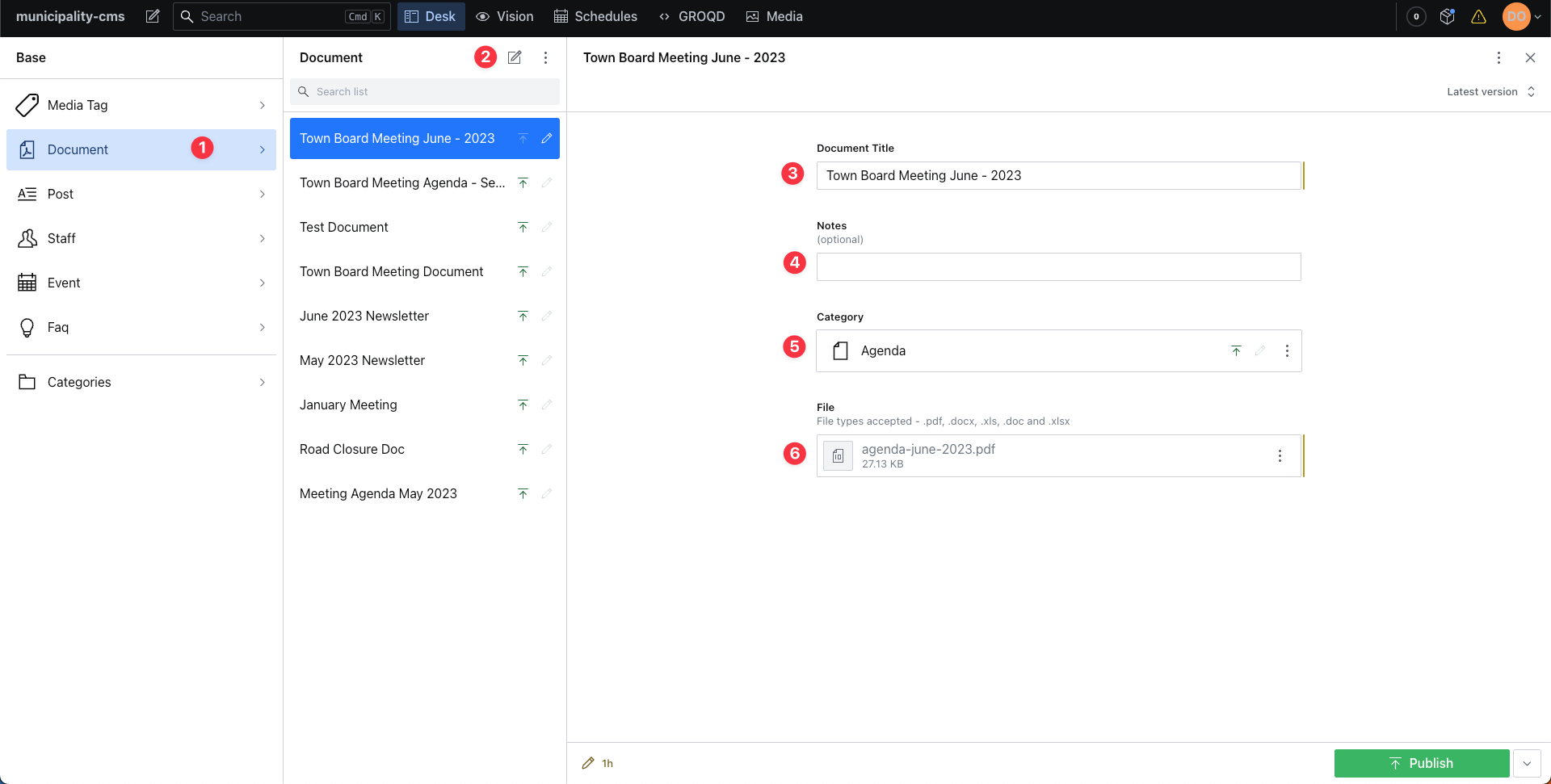
- Select Document in the left sidebar just like we did in the creating a new item tutorial.
- Click the pen and paper icon to create a new Document.
- Give the Document a title. For this example I'm creating a Town Board Meeting Agenda document so i've given it a unique title by including the month and year. "Town Board Meeting June - 2023"
- Add notes about the document (optional field).
- Select the category that matches your document. In this case I chose "Agenda".
- Upload your file or choose from files you have previously uploaded. Accepted file types are .pdf, .docx, .doc, .xls and .xlsx. I uploaded a .pdf file named "agenda-june-2023.pdf".
- Click the publish button in the lower right corner.
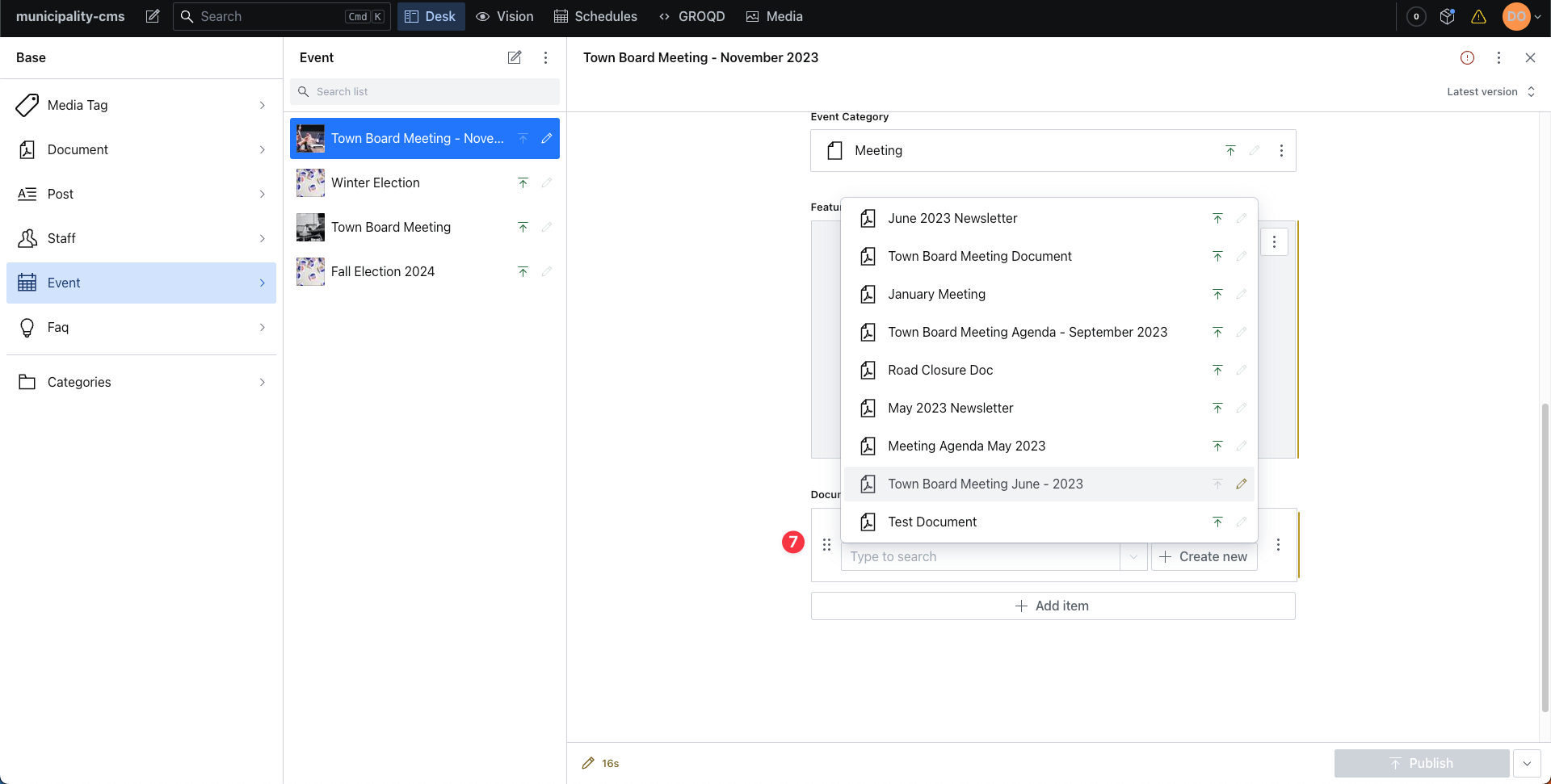
- This document is now saved and available to be picked in the drop down menu in the file field when creating a post event or FAQ.
info
Once a file has been uploaded it will be available via the dropdown menu under "Uploaded files" when creating a post, event or FAQ.
Creating a document while creating a new post event or FAQ
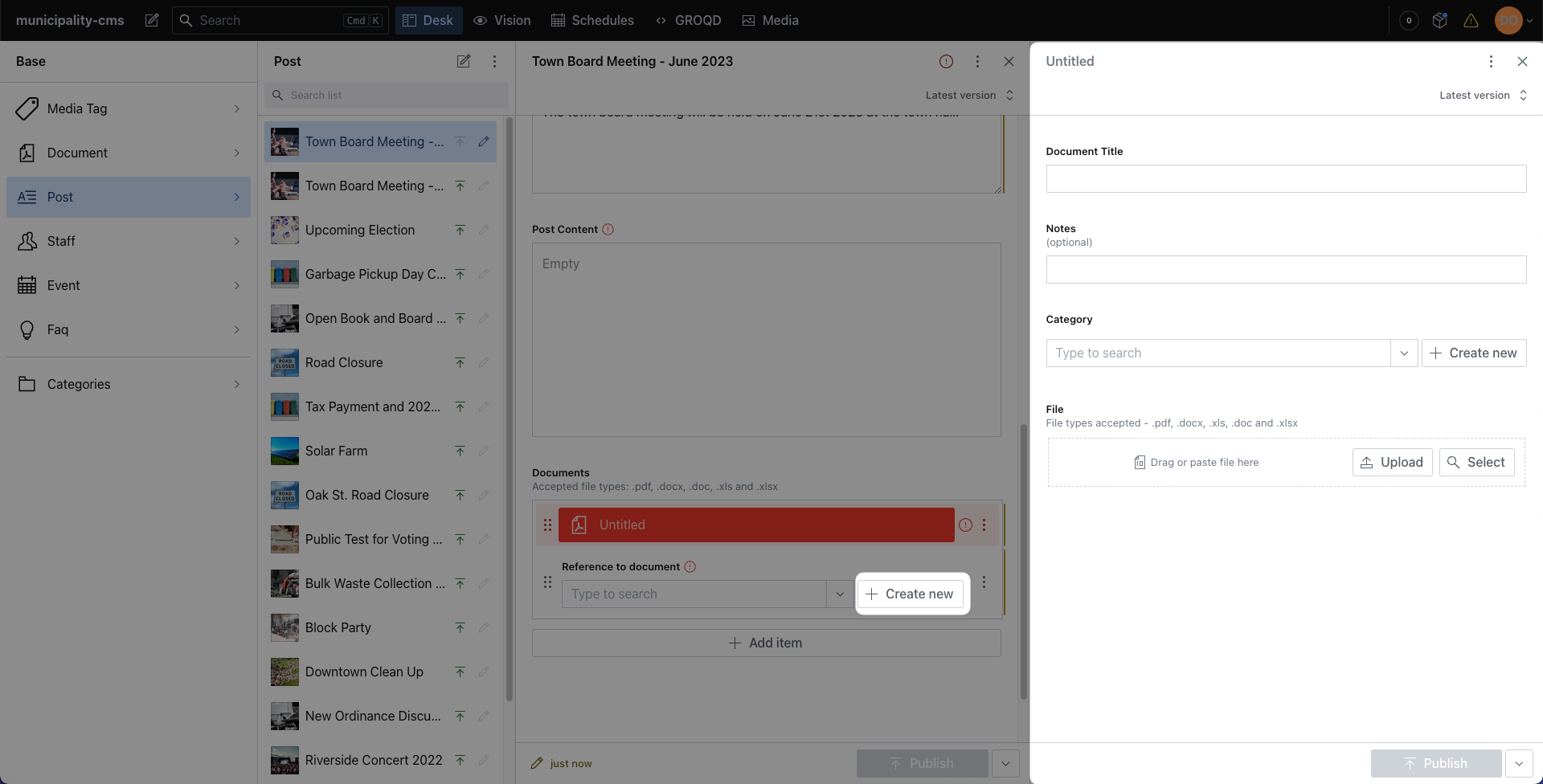
While creating a new event, post or FAQ the document field will have a "+ Create new" to create a document while working on your post, event or FAQ. This is so you don't have to go create the document before starting work on a new item.